Inserable
App Store ↗
Inserable
App Store ↗
Images in. Links out.
Inserable keeps a Hugo site’s Markdown and its images in step. Drop an image into an article and it is renamed, filed in the right folder and linked, and every change stays in sync on disk.
Sessions
One article, one folder.
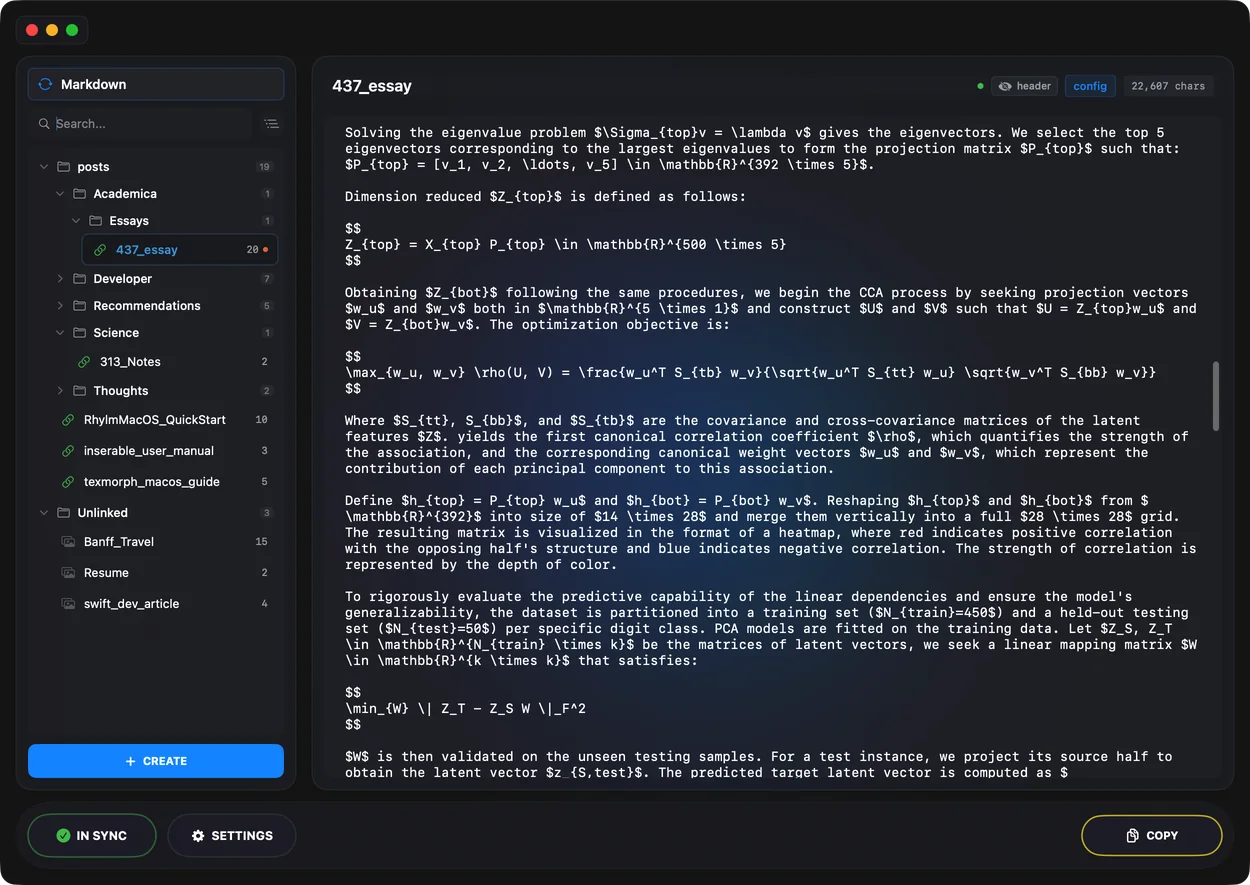
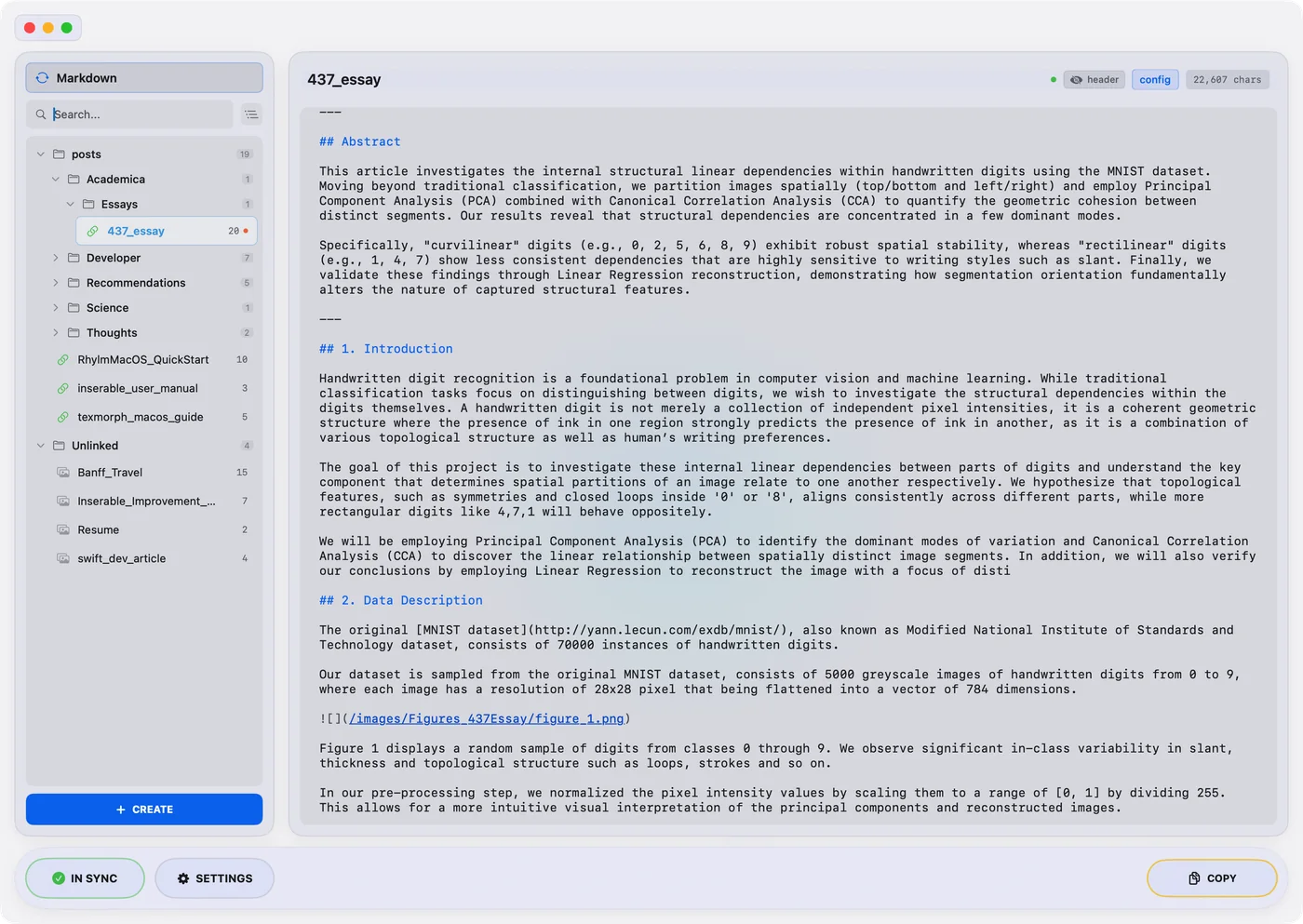
A session pairs one Markdown article with one image folder under your image root, and only that one. Inserable finds the pairs when you set it up, without moving your folders around, and keeps them: a green link icon marks a verified pair. Switch between an article’s Markdown and its images with one click.
Images
Drop it in, copy the link.
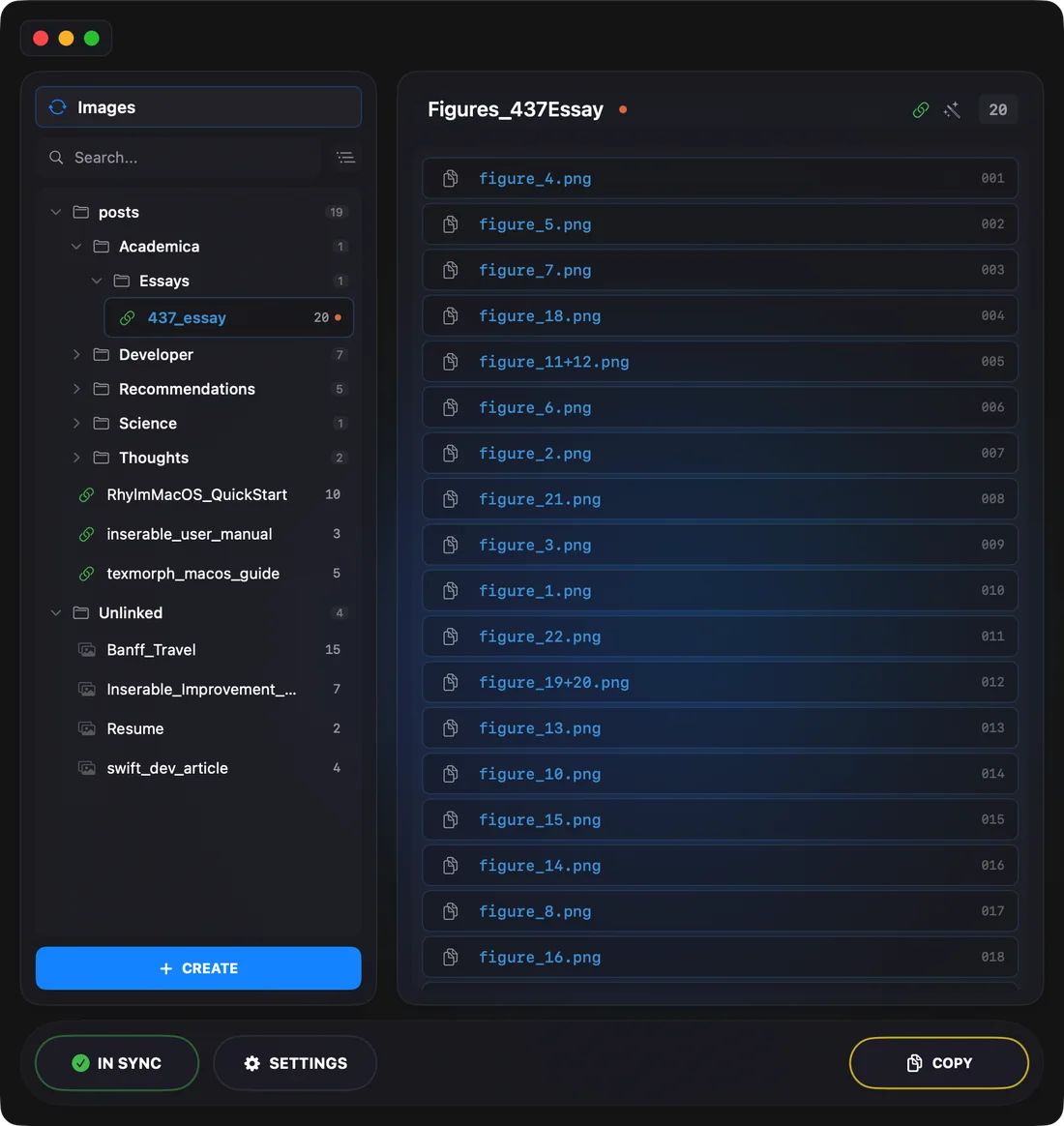
Drag an image from Finder into a session. Inserable gives it the session’s name and the next number, prefix_1.png, prefix_2.png and so on, and moves it into the session’s folder. Copy any image’s Markdown link from the list and paste it into the article.
Already have images with camera names? Standardize renames a whole session in order, and the article’s links follow.
Utilities
From a messy folder to a tidy site.
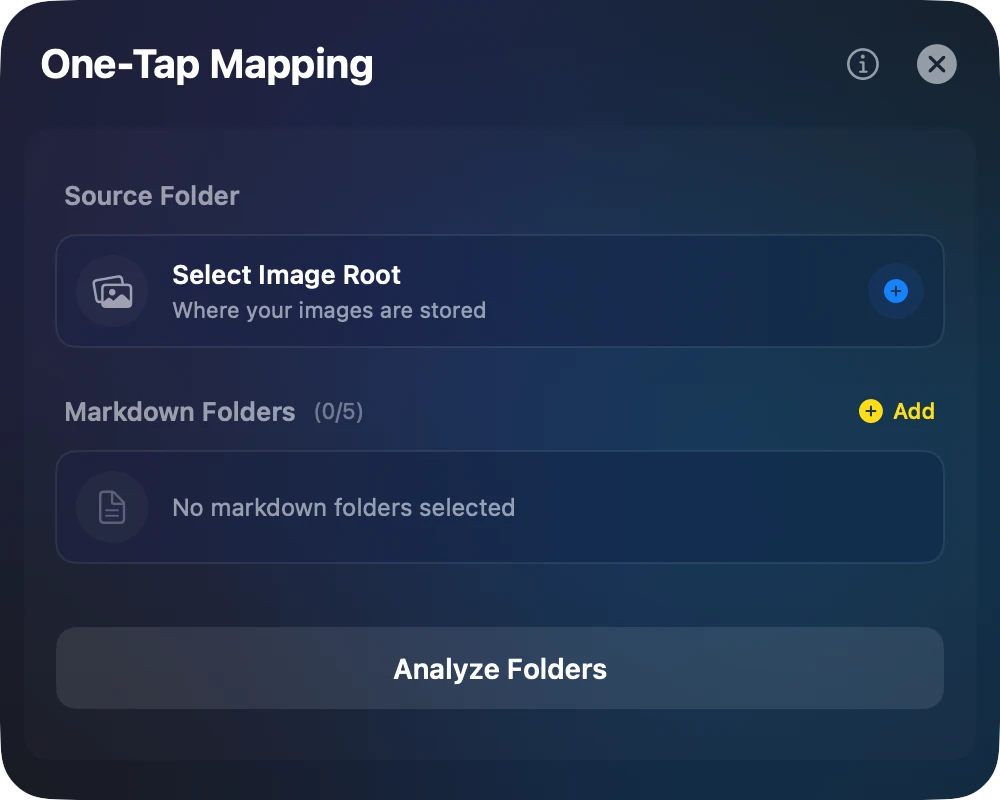
One-Tap Mapping sorts scattered images into a folder for each article and links them up, and keeps a log of everything it did.
Import TextBundle turns a bundle exported from your Markdown editor into a Hugo-ready article, rewriting its image links and adding front matter if you want it. When you are done, Git Commit & Push sends the change to your repository.
Sync
A guard for your assets.
Inserable keeps a mirror of the last state it synced. If files change behind its back, in Finder or elsewhere, it says so and lets you choose: Restore the last sync, Re-sync to accept what is on disk, or Delete the session.
Prefer to handle it yourself? Turn off Run integrity check on sync in Settings.

Getting started.
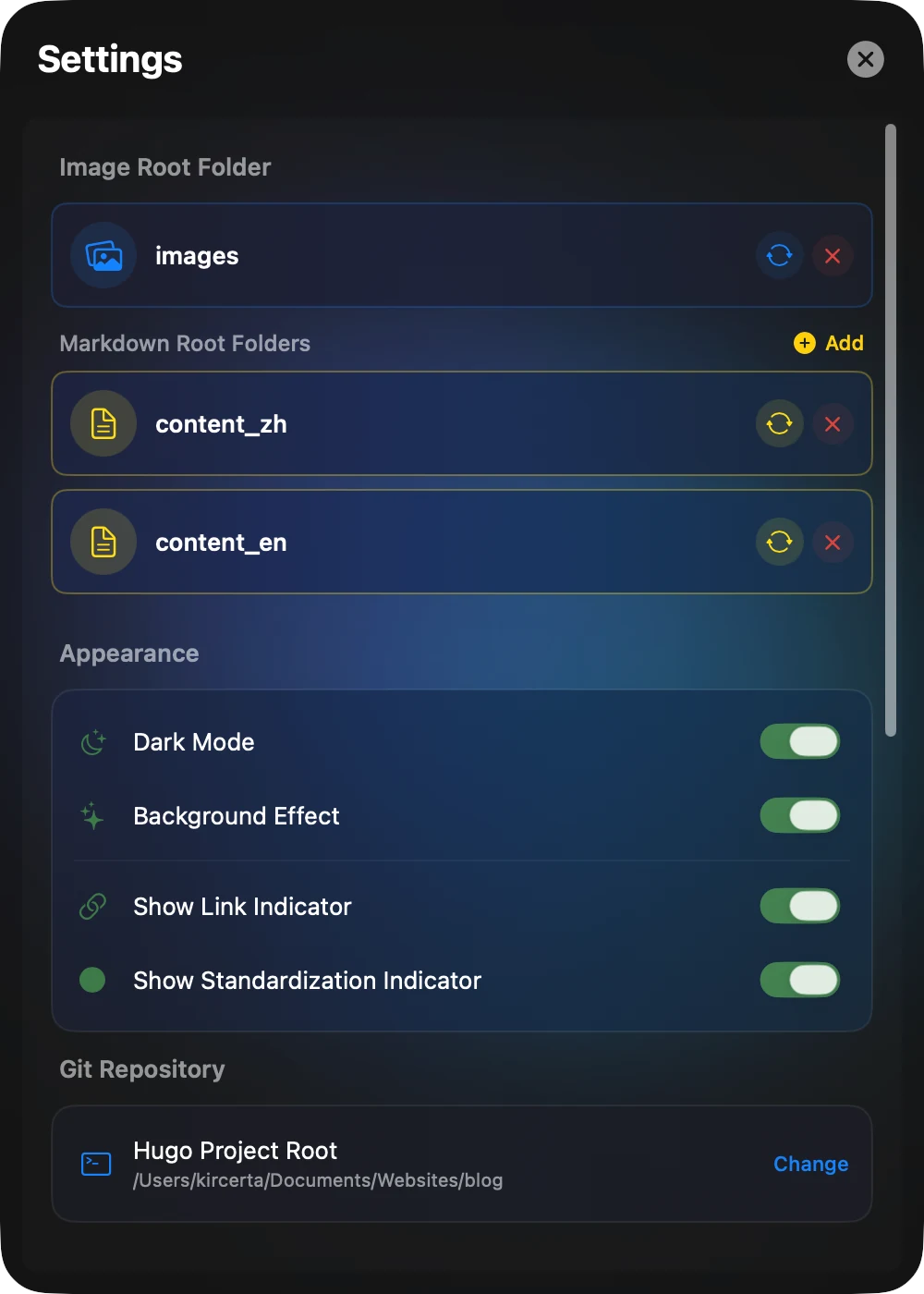
Three settings connect Inserable to your Hugo site. After that, it reads your files and builds the sessions itself.
Open Settings
Click Settings at the foot of the window.Choose the image root
Under Image Root Folder, pick the folder that holds your site’s images, usually static/images.Add Markdown folders
Under Markdown Root Folders, click Add for each folder of articles, such as content/posts. You can add up to five.Let it map
Inserable reads every article and image and creates the sessions. If a folder is too tangled to load, run One-Tap Mapping from Utility first.Write and drop
Select a session, drop images on it, then copy each image’s Markdown link into your article.Keep it in sync
Every change you make in Inserable is a sync. Auto-save every 5 minutes in Settings keeps doing it for you.