 Inserable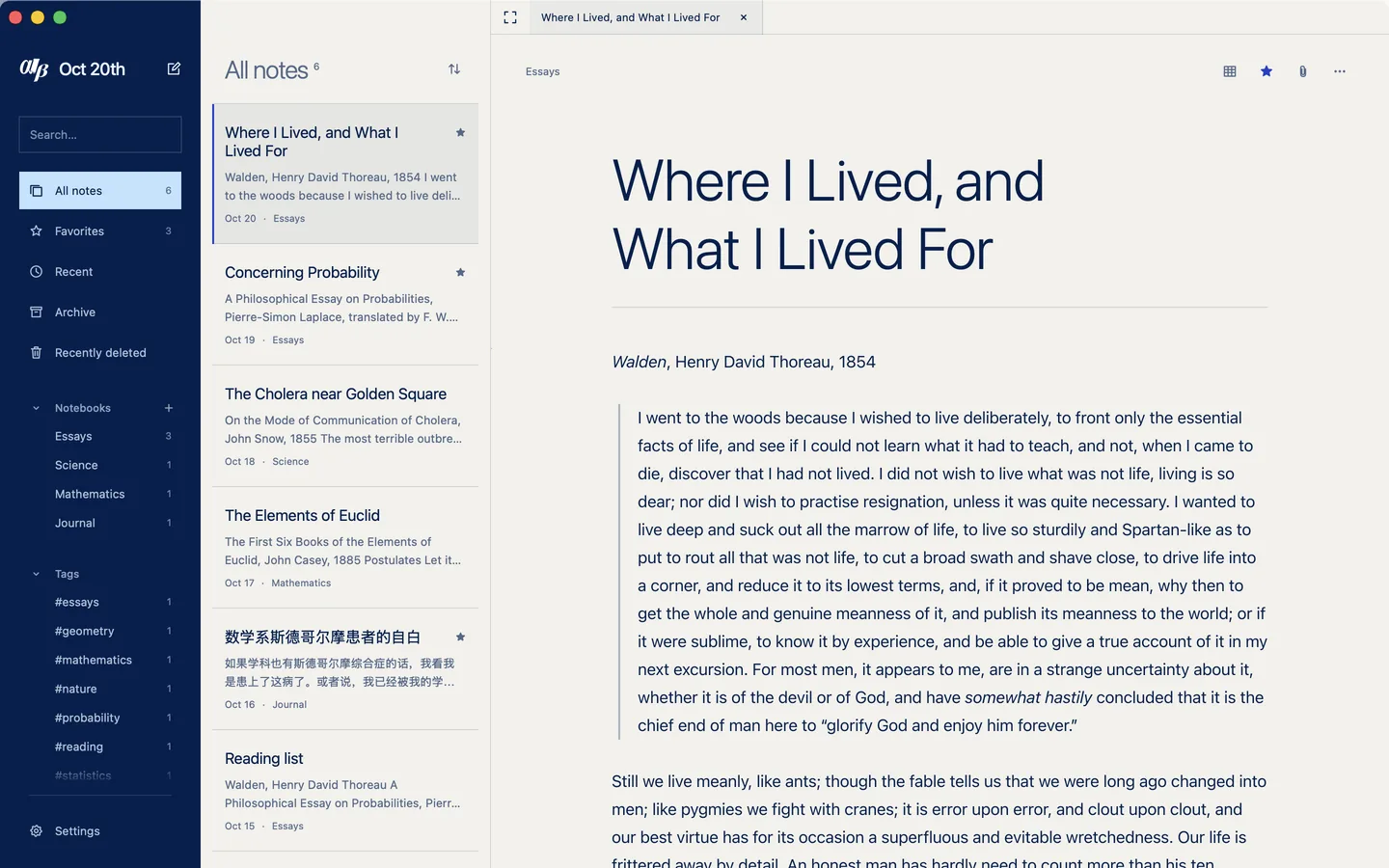
Getting started
Inserable keeps three things in view: your library, the notes in it, and the note you are writing.
Find your way around
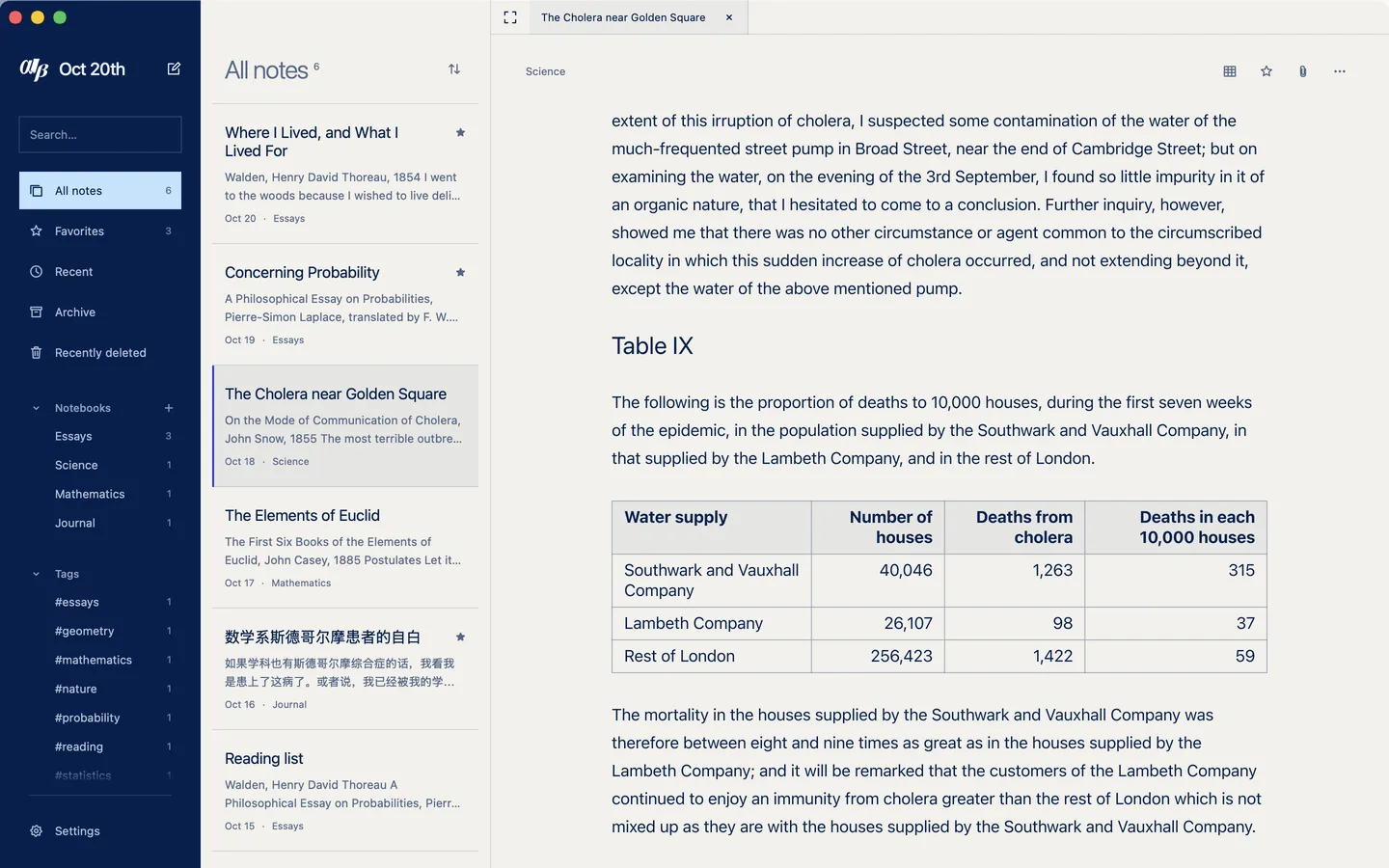
- The library lists All notes, Favorites, Recent, Archive and Recently deleted, then your Notebooks and Tags. Settings sits at its foot.
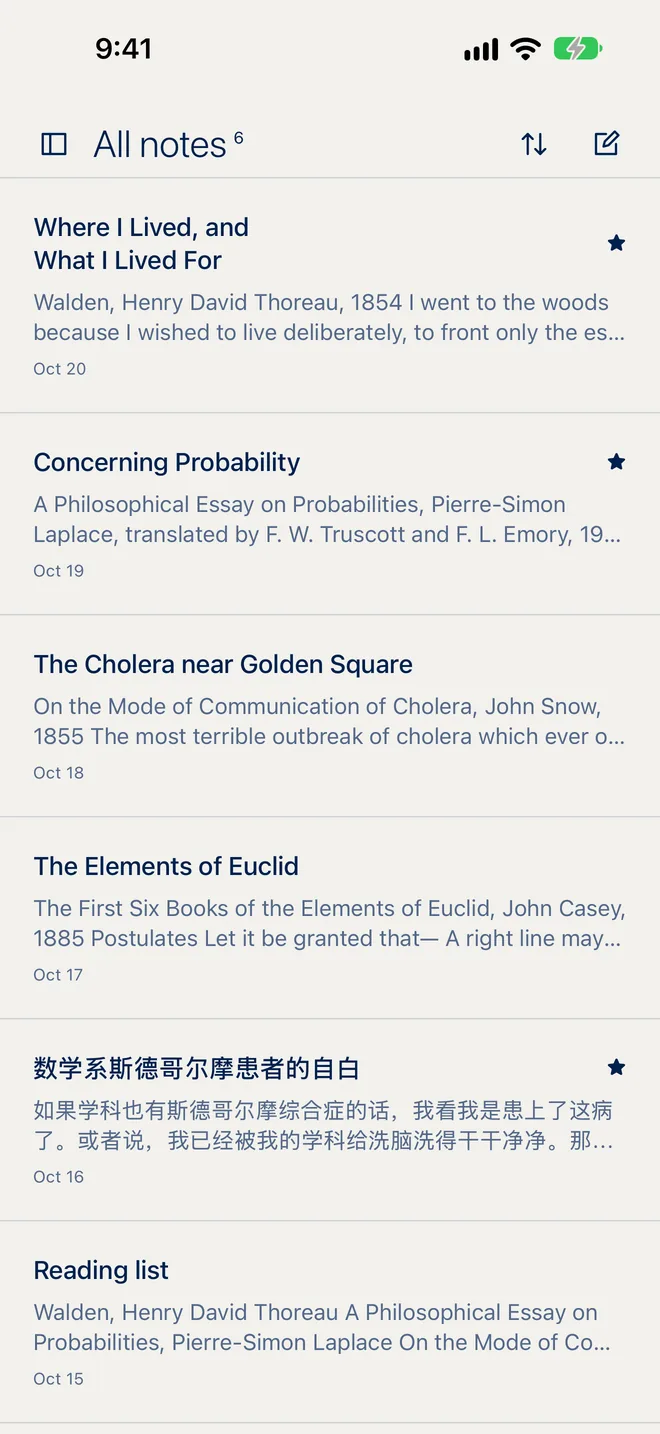
- The note list shows the notes in whatever you picked, with a preview and the date each was last changed. A pin or a star beside a title means it is pinned or a favourite.
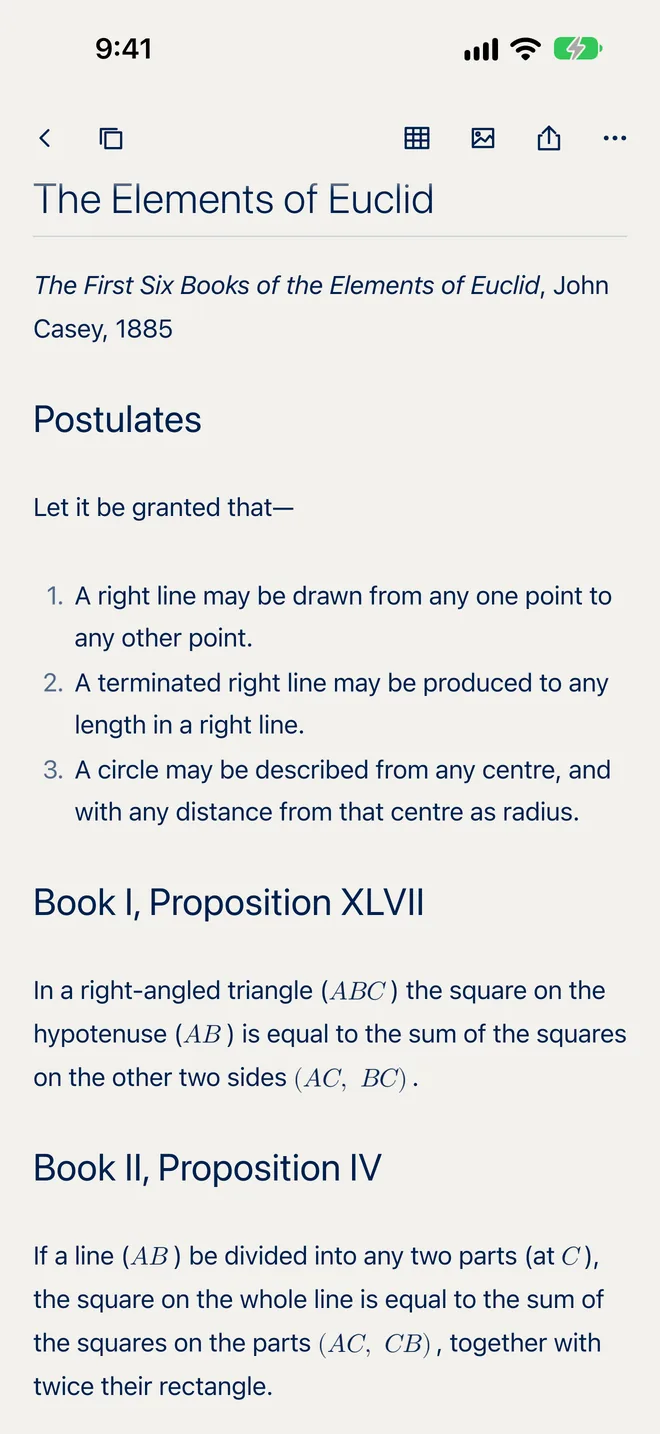
- The note has its title at the top and your writing below.
iPhoneYou start in the note list. Tap the library button at the top left to open the library, and tap a note to open it. Notes at the top left takes you back.
Mac and iPadThe library, the list and the note sit side by side.
Write your first note
- Tap or click the new note button at the top of the library or the note list.
- Type a title. Press Return to move into the note.
- Start writing. Everything saves on its own as you type.
MacChoose File › New Note or press ⌘N.
If you open a new note and leave it without typing anything, Inserable tidies it away for you.
A new note goes where you are: into the notebook you are looking at, into Favorites, or with the tag you have open.
Writing
You write plain Markdown, and Inserable shows it formatted as you go. The little marks step back once a line is done.
| Type | To get |
|---|---|
# Title | A heading. Use ## up to ###### for smaller ones. |
**bold** | bold |
*italic* | italic |
~underline~ | underline |
~~struck~~ | |
==marked== | highlight |
`code` | Inline code |
> quote | A blockquote |
- item | A bullet list |
1. item | A numbered list |
- [ ] task | A checklist item |
--- | A dividing line |
``` | A code block, on its own line before and after |
[text](address) | A link |
[[Note title]] | A link to another note |
$x^2$ | Maths in a line |
$$ … $$ | Maths on its own |
Lists and checklists
Press Return at the end of a list item and the next one starts for you. Press Tab to indent an item and Shift-Tab to bring it back. Tap or click a checkbox to tick it off.
Links
- Tap or click a link to edit it. Change its Label and Destination, and turn on Show preview to show the page as a small card. Choose Done.
- To follow a link, right-click it on a Mac, or touch and hold it on iPhone and iPad, and choose Open link.
- A link to another note, written as
[[Note title]], opens that note.
Maths and code
Write maths between dollar signs and it is typeset in place. A code block has a copy button, so you can grab its contents in one go.
Paste
Paste text from a web page or another app and Inserable turns its formatting into Markdown. Pasted images are added to the note.
See the Markdown
Open Note actions (the … button at the top of the note) and choose Source to see and edit the plain Markdown. Choose Live Markdown to go back. Copy Markdown copies the whole note as Markdown.
MacWriting › Markdown Source, ⇧⌘M, switches either way.
Formatting tools
You can type every mark yourself, or let Inserable add it.
On a Mac
Select some text, or put the cursor on a line, and choose from the Writing menu: Heading 1 to 6, Strikethrough, Underline, Inline code, Blockquote, Bullet list, Link, Table, Numbered list, Checklist, Code block, and indenting. Bold and Italic are in the Edit menu. Most have a shortcut; see Keyboard.
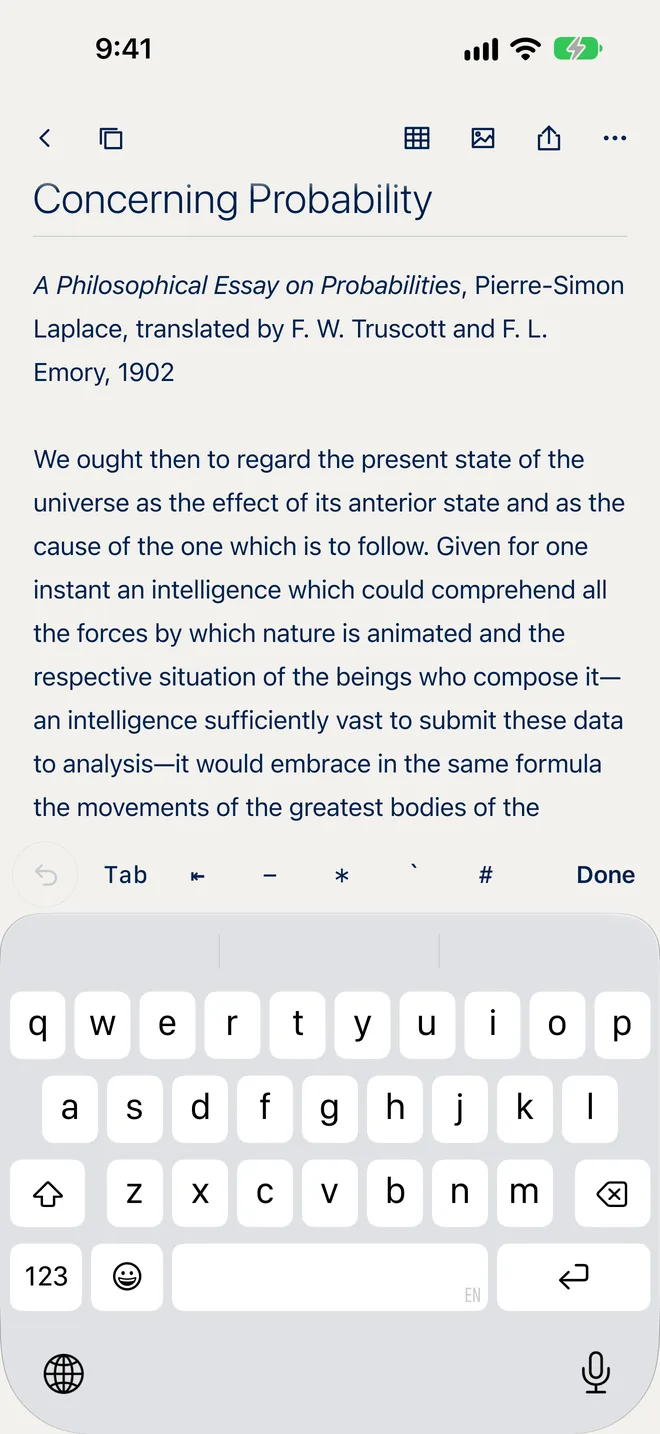
On iPhone
A bar sits above the keyboard while you write:
- Undo button
- Tap to undo. Swipe it left to undo and right to redo.
- Tab and ⇤
- Indent a line, or bring it back.
- - * ` # [ ] ~ $
- Type the marks Markdown uses most. Scroll the bar sideways to see them all.
- Done
- Puts the keyboard away.
Select text and touch it for the usual edit menu; Inserable adds Insert Table and actions for what you touched, such as Open link or Mark complete.
On iPad
The same bar runs along the bottom of the note while you type. With a keyboard attached, ⌘1 to ⌘6 make headings, ⇧⌘L a numbered list, ⌥⌘L a checklist, ⌥⇧⌘C a code block, and Tab and Shift-Tab indent.
Tables
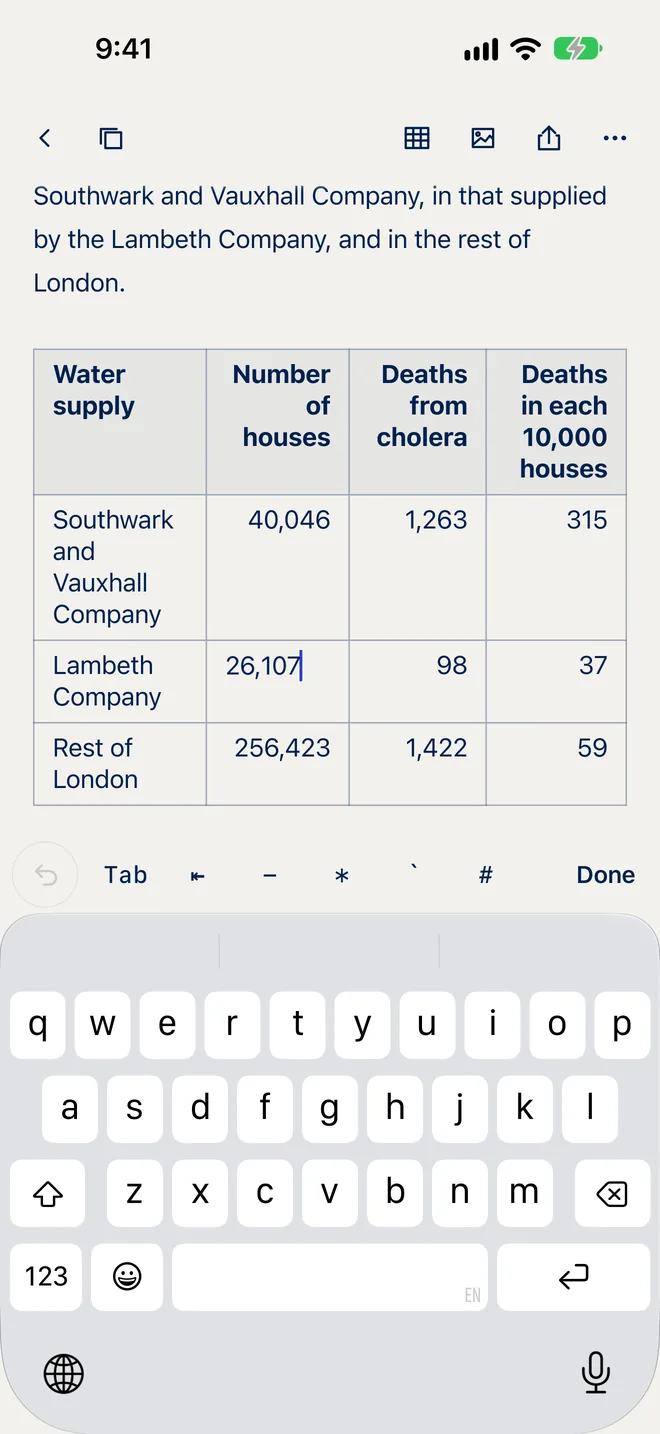
Tables show as real tables. You type straight into the cells.
Insert a table
- Tap or click the table button at the top of the note.
- Move across the grid to choose a size, up to 8 columns and 10 rows, then tap or click.
MacOr choose Writing › Table, ⌥⌘T. Use the arrow keys to size the grid and Return to insert it.
Type in a table
- Tap or click a cell to type in it. The first row is the header.
- Tab moves to the next cell and Shift-Tab to the one before. Tab in the last cell leaves the table.
- Return or Esc finishes typing in the cell.
Change a table on a Mac
Hover over a cell and click the ⋮ handle at its edge, or right-click the cell:
- Add row below
- A new empty row under this one.
- Add column right
- A new empty column after this one.
- Delete row, Delete column
- Remove the row or column the cell is in.
- Delete table
- Remove the whole table.
To work on several cells, drag across them or Shift-click. Press Delete to clear them, or Shift-Delete to remove their rows or columns.
Change a table on iPhone and iPad
Touch and hold a cell, drag to take in more cells, then lift your finger. Choose Clear Cells, or the delete option to remove those rows, columns or the whole table. To add rows or columns, switch the note to Source and add them to the Markdown.
Images and files
Images show in the note. Other files are kept with the note so they travel with it.
Add them
- On a Mac, click the paperclip at the top of the note and choose Insert image… or Add file…. You can also drag image files into the note, or paste an image.
- On iPhone and iPad, tap the photo button at the top of the note and choose Choose a photo, Insert image from Files… or Attach file….
- Each image can be up to 50 MB, and up to 200 MB at a time.
Work with them
- Tap or click an image to open it.
- Give an image a caption: on a Mac, right-click it and choose Edit caption; on iPhone and iPad, type in Add a caption under it. On iPhone and iPad you can also fold an image away and show it again.
- The paperclip on a Mac, or the photo button on iPhone and iPad, lists the note’s files. Pick one to Open it, Copy reference to place it elsewhere, rename its label, or Remove references from note.
Managing notes
Everything you can do with a note lives in Note actions.
Open Note actions
- Tap or click … at the top of the note.
- On iPhone and iPad, touch and hold a note in the list.
- On a Mac, right-click or Control-click a note in the list, or use the Note menu.
- Open in new tab
- See Tabs.
- Rename…
- Change the title.
- Add to favorites
- iPhone and iPad. On a Mac, click the star at the top of the note.
- Pin to top
- Keeps the note at the top of the list. Unpin lets it go.
- Move to notebook…
- Pick a notebook, or Unfiled.
- Edit tags…
- See Tags.
- Archive note
- See Archive.
- Duplicate
- Makes a copy and opens it.
- Export…
- See Export.
- Move to Recently deleted
- See Recently deleted.
The foot of the menu shows the note’s word count and reading time.
Swipe a note
In the note list, swipe a note to the right to pin it, or to the left to move it to Recently deleted. Swipe part way to show the button, or all the way to do it at once. On a Mac, swipe with two fingers on the trackpad.
Sort the list
The sort button at the top of the list offers Last edited, Date created, Title and Manual order. Drag a note up or down the list to place it yourself; the list switches to Manual order. Pinned notes always stay on top, and Recent always shows the latest changes first.
Notebooks and tags
A note lives in one notebook, and can carry as many tags as you like.
Notebooks
- Tap or click + beside Notebooks in the library, name it, and choose Create notebook. On a Mac you can also press ⇧⌘N.
- For a notebook’s options, right-click it on a Mac, or tap the … beside it on iPhone and iPad: Rename…, New subnotebook… and Delete….
- Deleting a notebook keeps its notes; they become unfiled. Any notebooks inside it move up a level.
- To reorder notebooks or put one inside another, drag it in the library. On iPhone and iPad, touch and hold it first. On a Mac, drop it on All notes to bring it back to the top level.
- To file a note, drag it onto a notebook, or use Move to notebook…. Dragging a note onto All notes unfiles it.
Tags
- Choose Edit tags… in Note actions. Type a tag and choose Add tag, or pick one of the suggestions, then Save tags. Dragging a note onto a tag in the library adds it too.
- Use a slash to nest tags, such as
reading/books. Choosing #reading then shows everything under it. - To rename a tag everywhere, or take it off every note, right-click it on a Mac, or touch and hold it on iPhone and iPad.
Favorites
Star the notes you come back to and find them all under Favorites. On a Mac, click the star at the top of the note; on iPhone and iPad, choose Add to favorites in Note actions.
Archive and Recently deleted
Archive
Archive a note you are done with but want to keep. It leaves All notes, your notebooks, tags and everyday search, and waits under Archive. Choose Archive note in Note actions, or drag the note onto Archive. Unarchive note brings it back.
Recently deleted
- Deleted notes go to Recently deleted first, and stay there until you remove them.
- Open one and choose Restore in Note actions to put it back where it was.
- Delete permanently… removes a note and its files for good. In Recently deleted, swiping a note to the left offers the same.
- Empty… at the top of the list removes everything in Recently deleted. Inserable asks first.
Search
Search your library
Type in Search… at the top of the library. Inserable looks through titles, writing and tags across your notes. Archived and deleted notes stay out of it, unless you search while Archive or Recently deleted is open.
MacWriting › Find a Thought…, ⌘K, jumps to the search field.
Find in a note
Choose Find in note in Note actions, or press ⌘F on a Mac or an iPad keyboard. Type what you are after and step through the matches with the arrows, or ⌘G and ⇧⌘G. Press Esc to close it.
Tabs and Focus mode
Keep several notes open
- Choose Open in new tab in Note actions. Your open notes appear as tabs above the note; click the × on a tab to close it.
- On iPhone and iPad, tabs are off at first. Turn on Show note tabs in Settings, or use the switch notes button at the top of the note to jump between open notes or Close current note.
Focus mode
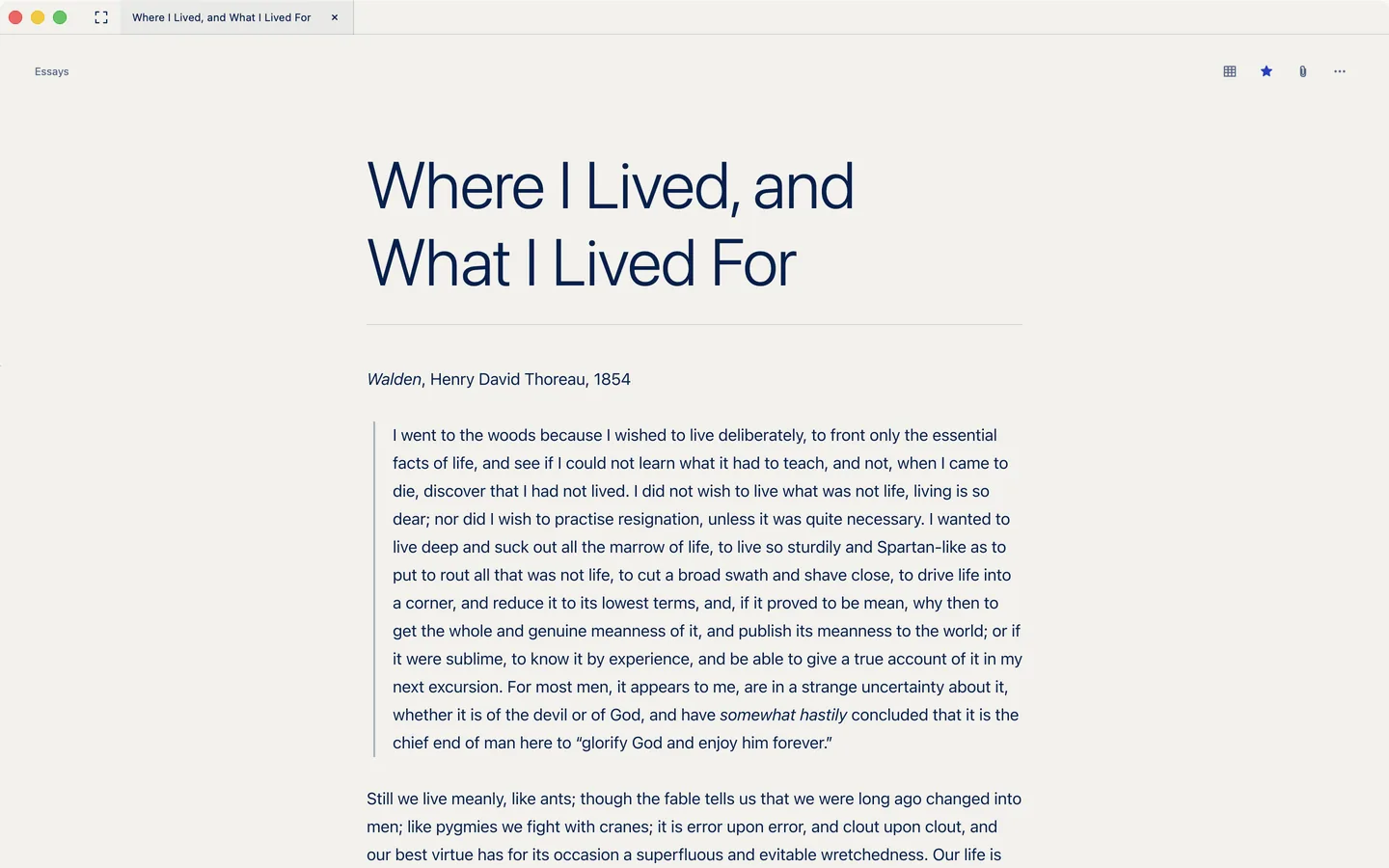
Focus mode sets the library and the list aside so only your note remains. Click the focus button at the top of the window on a Mac, or tap Focus on iPad. Choose Leave focus to come back.
MacWriting › Focus Mode, ⇧⌘F.
Export and import
Export a note
Choose Export… in Note actions, or tap the share button at the top of the note on iPhone and iPad. Pick a format:
- Ready to print or send, with its images.
- Markdown
- The note exactly as you wrote it.
- Plain text
- The words without the marks.
- HTML
- A web page, with its images.
- Rich text (RTF)
- For word processors.
- TextBundle
- Markdown and its files together, for other Markdown apps.
- Markdown & attachments (ZIP)
- The Markdown file and its files in one archive.
On iPhone and iPad, choose Share exported file to save or send it.
MacFile › Export Note lists every format. Markdown is ⇧⌘E.
Export your whole library
In Settings, choose Export everything as ZIP…. You get one archive with every note, notebook, tag and file.
Import
- Inserable imports Markdown and plain text files, TextBundles and TextPacks, ZIP files of notes, and a library you exported from Inserable.
- On a Mac, choose File › Import…, ⌘O, or drag files onto the library or the note list.
- On iPad, drag files onto the library.
Imported notes land in All notes, and the first one opens.
Settings and iCloud
Open Settings at the foot of the library.
- Dark appearance
- Navy night colours instead of warm paper.
- Check spelling while typing
- Mac.
- Show note tabs
- iPhone and iPad. See Tabs.
- Plan
- Your plan and its next date. See Plans.
- iCloud
- Syncs your notes through your own private iCloud across your devices. Off keeps them on this device.
- Export everything as ZIP…
- See Export.
- Recently deleted
- A shortcut to deleted notes.
- Report a bug, User manual, Privacy policy
- Help, close at hand.
The version of Inserable is shown at the foot of Settings.
MacInserable › Settings…, ⌘,.
Sync and privacy
- With iCloud on, your notes reach every device signed in to the same Apple Account. Settings tells you when it is syncing, waiting, or needs you to sign in to iCloud.
- Inserable does not collect your information. See the privacy policy.
Plans and free trial
Inserable comes with a monthly plan and a yearly plan. Either one unlocks everything.
- Open Plan in Settings to see both plans and their prices. The yearly plan shows how much you save.
- If you are new, you can start with a free trial; the button shows how many days you get, such as Try 14 days free. Settings counts down the days left.
- Plans renew on their own until you cancel at least 24 hours before the period ends. Choose Manage subscription to change or cancel, or switch to the other plan.
- On a new device, choose Restore purchases.
Without a plan
When there is no plan or trial, your library becomes read-only. Every note is still there to read, search and export, but writing, new notes and changes wait until you pick a plan. Tap Read only · Choose a plan at the top of a note to choose one.
Requirements
- Mac
- macOS 26 or later
- iPhone
- iOS 17 or later
- iPad
- iPadOS 17 or later
on the App Store