 Texmorph
01 / Get started
Texmorph tidies text you paste in: a reply from an LLM, notes for a paper, a block of commented code. It removes or repairs the formatting you choose and leaves the words alone. There is no account, and your text is processed on your device.
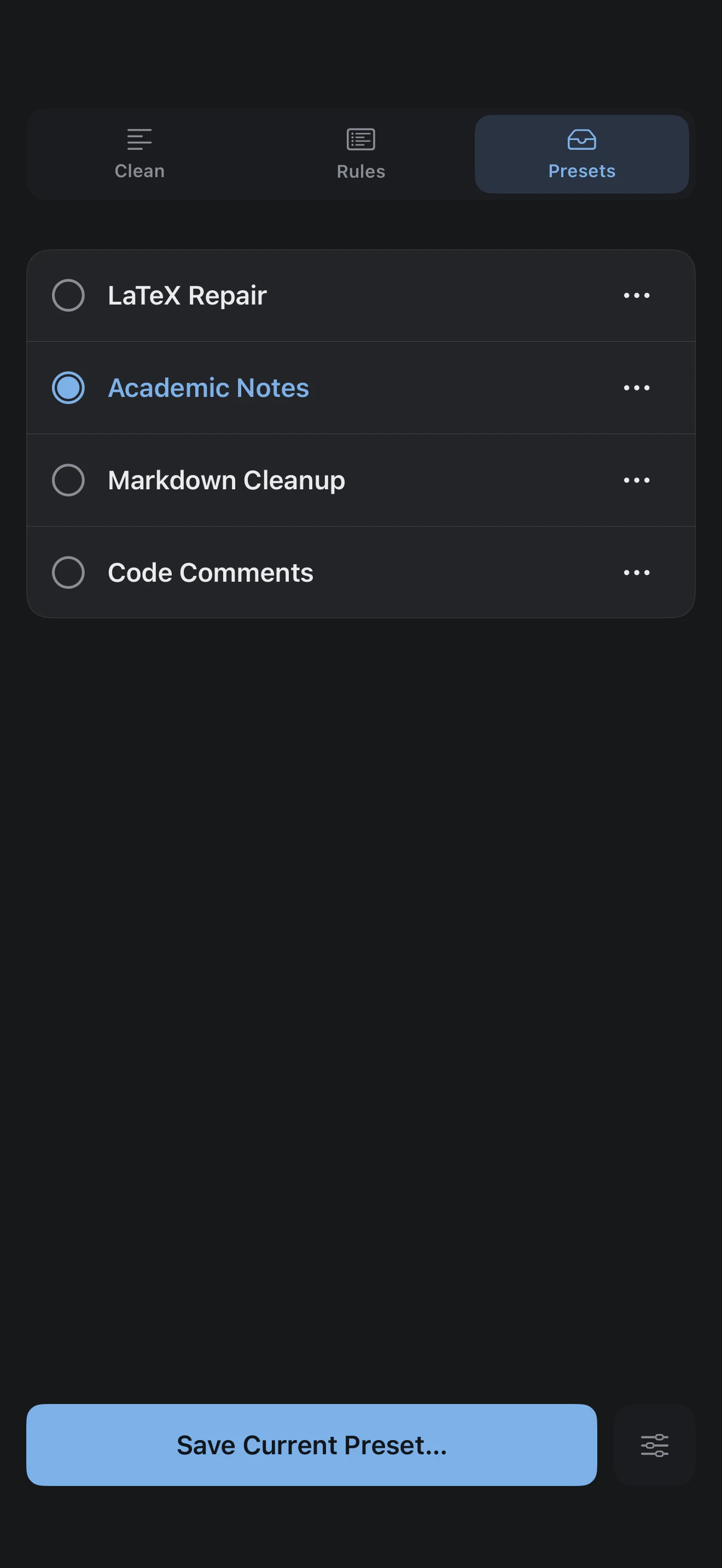
The app has four places. On a Mac they sit in the rail on the left; on iPhone they are the controls at the top.
- Clean
- Your input and its cleaned result.
- Rules
- Every cleaning rule, ready to turn on or off, and your custom rules.
- Presets
- Saved combinations of rules, ready to apply.
- Settings
- Appearance, the Diff default, Texmorph Pro and support.
Texmorph 1.2 needs macOS 15.6 or iOS 18.6 or later. The iPhone app also runs on iPad.
02 / Clean text
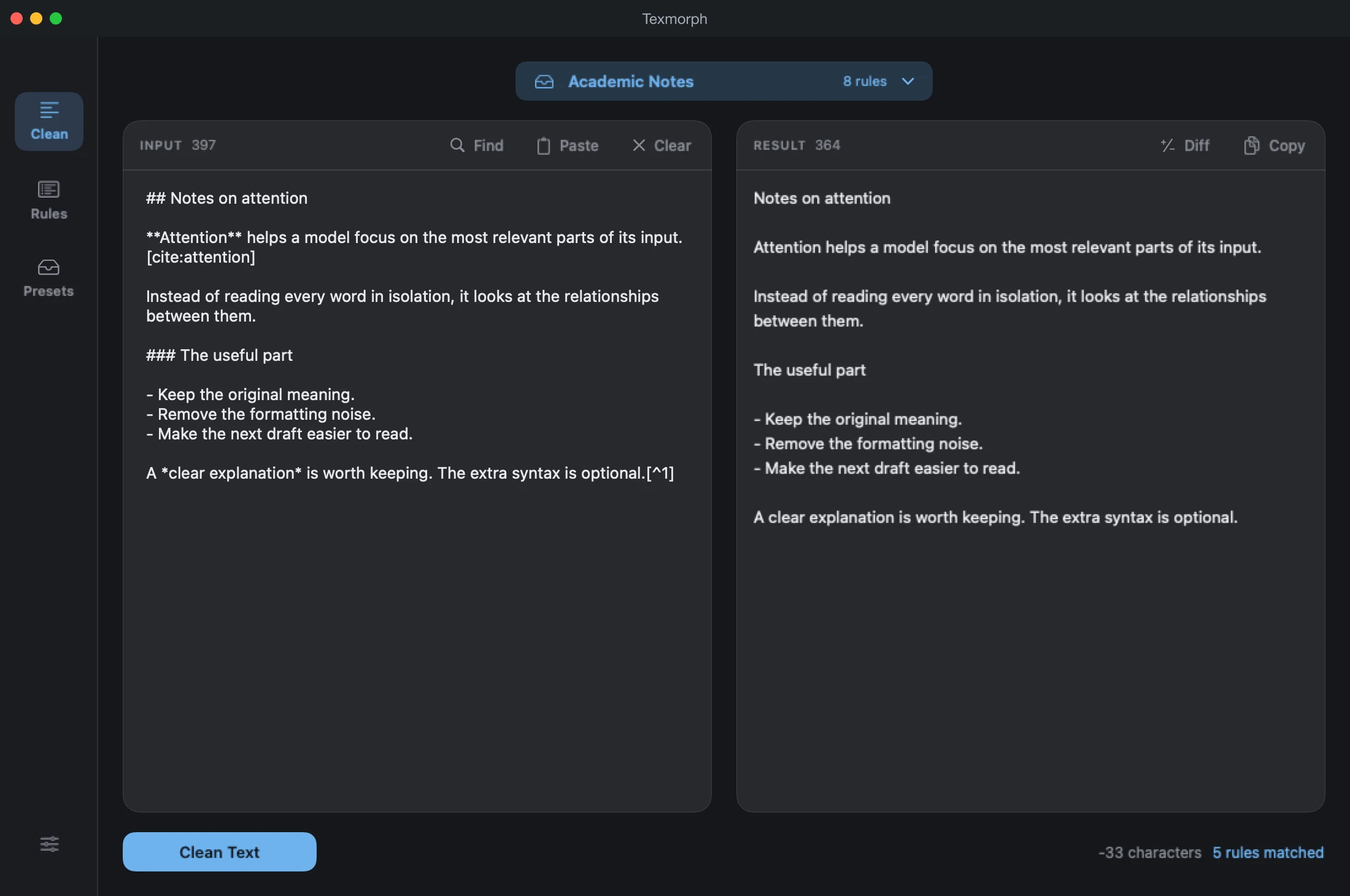
- Open Clean and paste or type into Input. Paste brings in whatever is on the clipboard.
- Choose Clean Text. On a Mac you can also press ⌘Return.
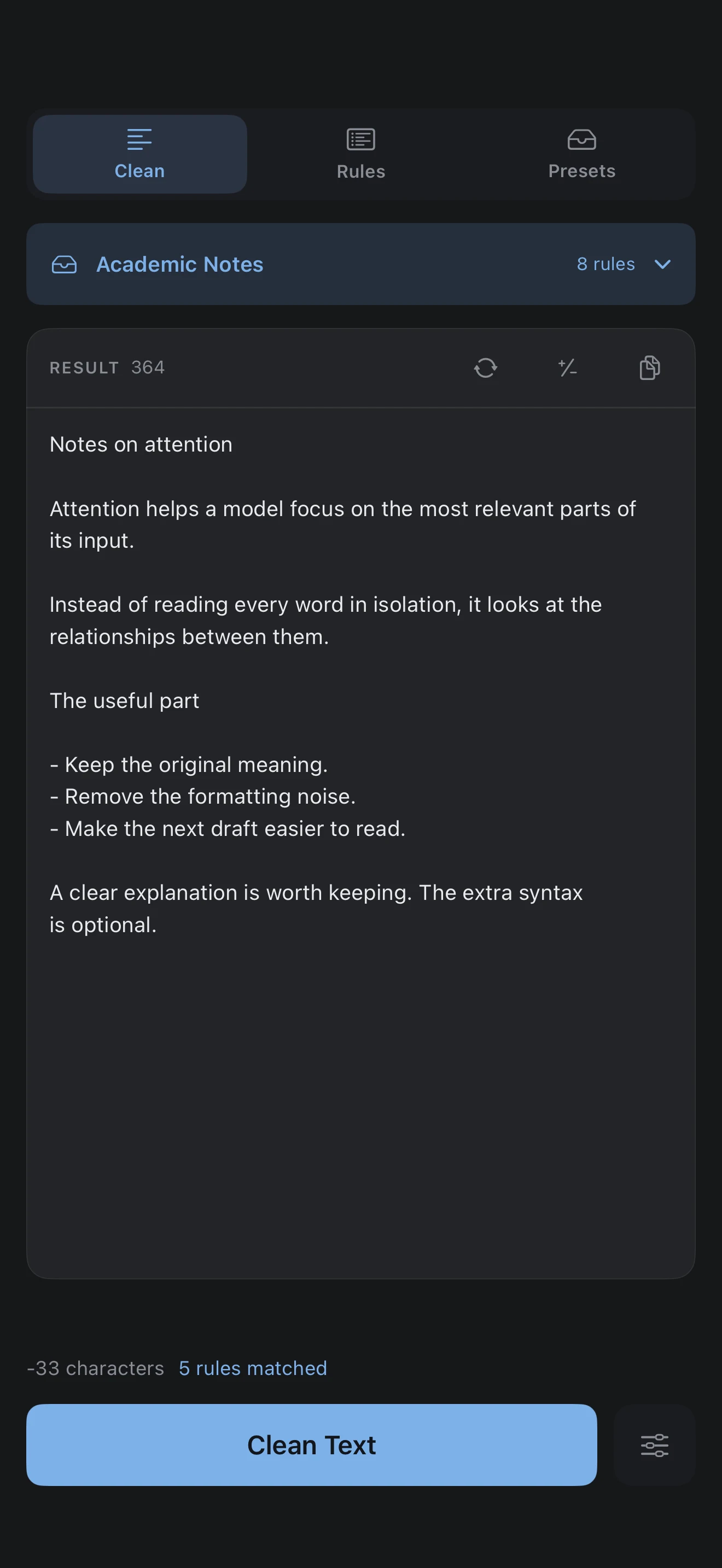
- Read the Result. The status line counts the rules that actually changed your text.
- Choose Copy to put the result on the clipboard.
On a Mac, Input and Result sit side by side. On iPhone they share one large canvas: Clean Text switches to the result and puts the keyboard away, and Show Input flips back to your text with its selection and Undo history intact.
03 / See the differences
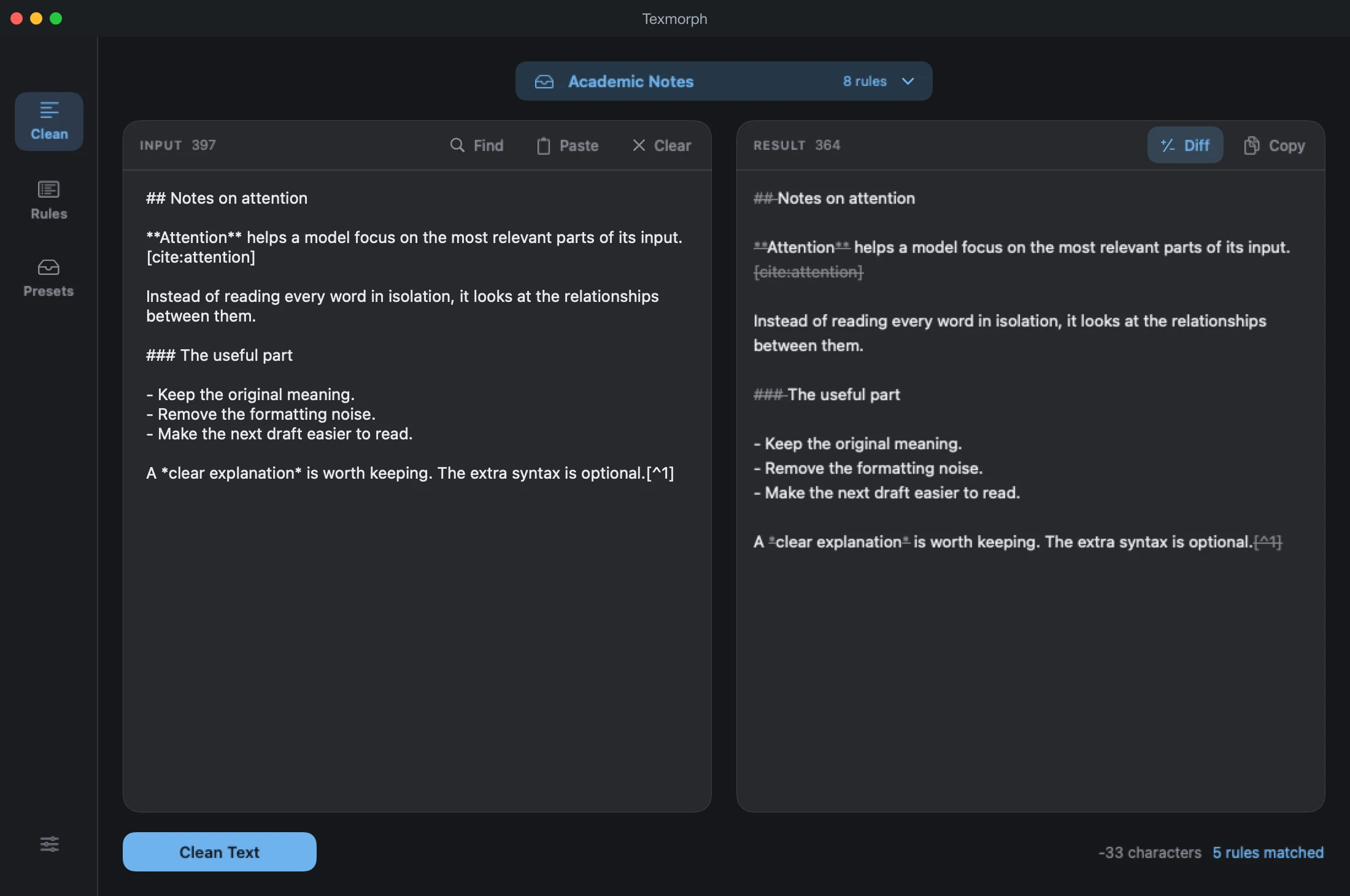
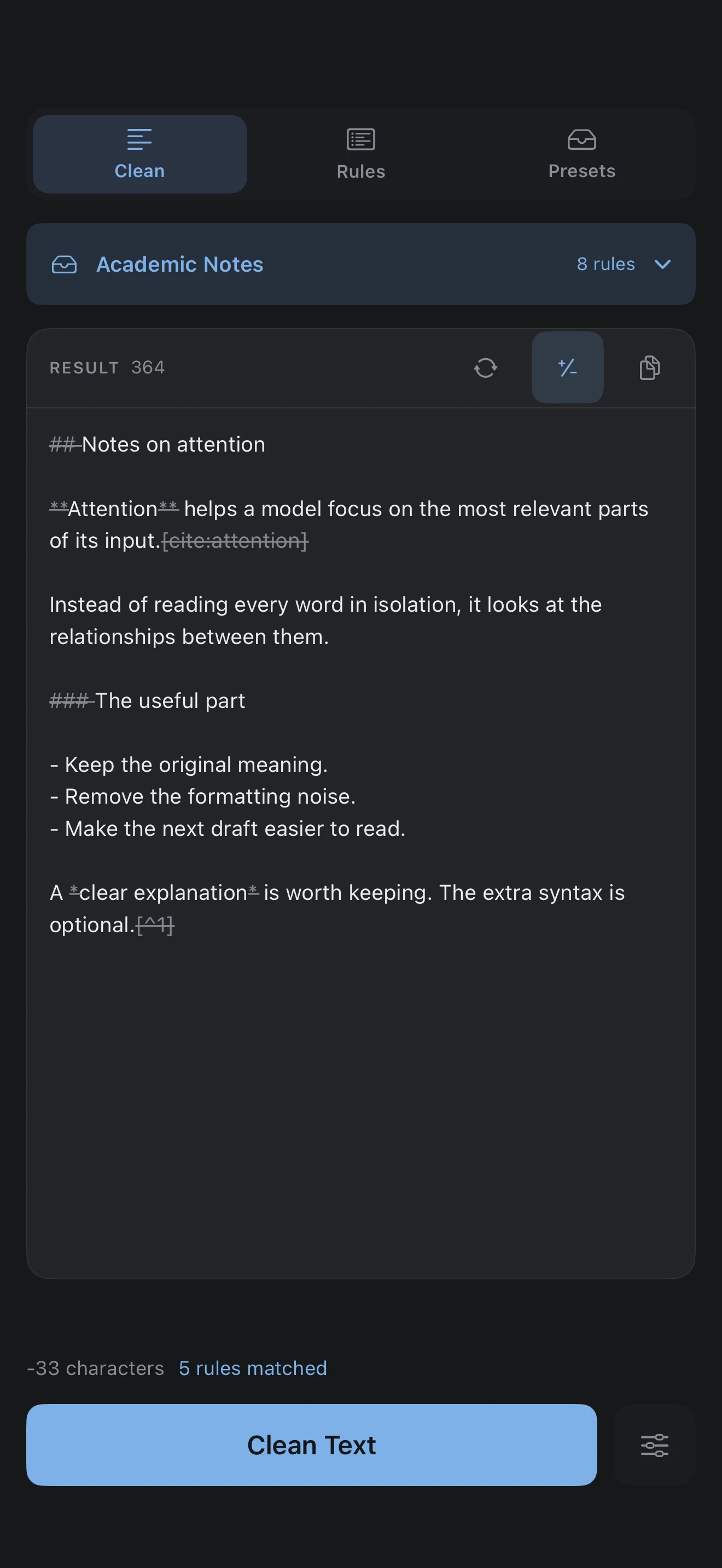
Turn on Diff above the result to see what changed: removed text is struck through in grey and added text is shown in blue. It is only a view. Copy always copies the plain result, without the marks.
To start every result with Diff on, open Settings and switch on Show diff by default under Processing.
04 / Choose rules
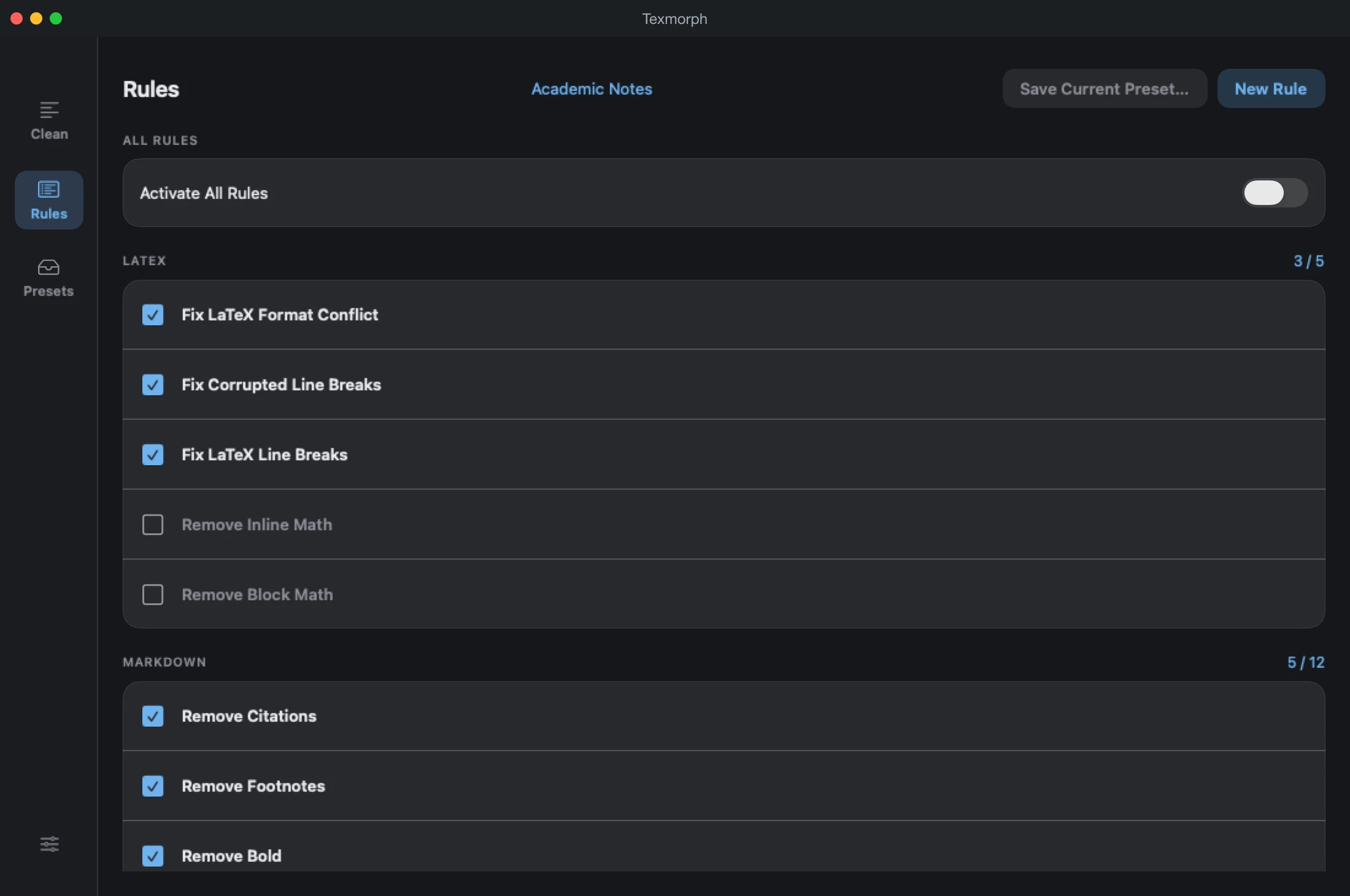
Open Rules and turn each rule on or off. The rules that come with Texmorph are grouped by what they work on, and you can turn them all on at once with Activate All Rules.
| Group | Rules |
|---|---|
| LaTeX | Fix LaTeX Format Conflict, Fix Corrupted Line Breaks, Fix LaTeX Line Breaks, Remove Inline Math, Remove Block Math |
| Markdown | Remove Citations, Remove Footnotes, Remove Bold, Remove Italic, Remove Strikethrough, Remove Inline Code, Remove Headings, Remove Unordered List, Remove Ordered List, Remove Blockquotes, Remove Links (the text stays), Remove Images |
| Code | Remove Non-ASCII, Remove // /* */ Comments, Remove # Comments, Remove Empty Lines, Trim Trailing Whitespace |
Built-in rules can be turned on and off but not edited. Your choices are kept between launches.
05 / Custom rules
When the built-in rules are not enough, write your own with a regular expression.
- In Rules, choose New Rule.
- Give it a Name, and a description if you like.
- Pick a Category: LaTeX, Markdown, Code or Custom.
- Enter the Pattern and the Replacement. Leave the replacement empty to delete what the pattern matches.
- Choose Save Rule.
A custom rule’s menu, from its … button or a long press, has Edit Rule…, Duplicate, Move to and Delete Rule. Texmorph asks before it deletes anything, and asks again if you try to leave a rule with unsaved changes.
06 / Presets
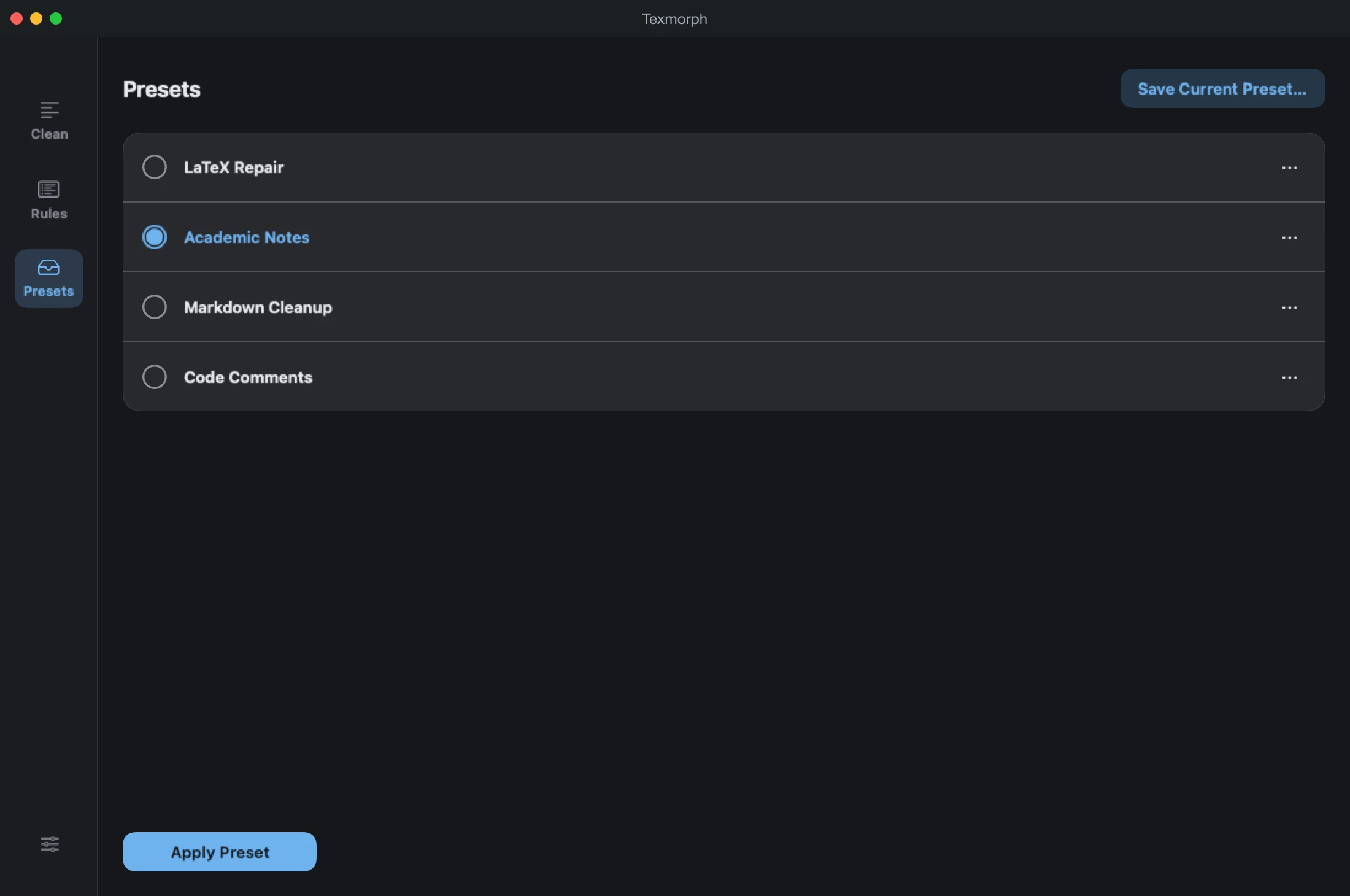
A preset is a snapshot of which rules are on. Applying it turns every rule on or off to match.
- Save one: turn on the rules you want, then choose Save Current Preset… and name it.
- Apply one: on a Mac, select it in Presets and choose Apply Preset, or press ⌘1 to ⌘9 for the first nine. On iPhone, tap it. The preset menu lists them too, along with Custom and Manage Presets.
- Change one: its menu has Apply, Edit Preset…, Duplicate and Delete Preset.
Turning a rule on or off by hand moves you to Custom. The preset you started from is not touched; apply it again to go back.
Texmorph starts you with one preset, LaTeX Repair. It is an ordinary preset: rename it, change it or delete it. Once deleted, it does not come back.
07 / Find & Replace
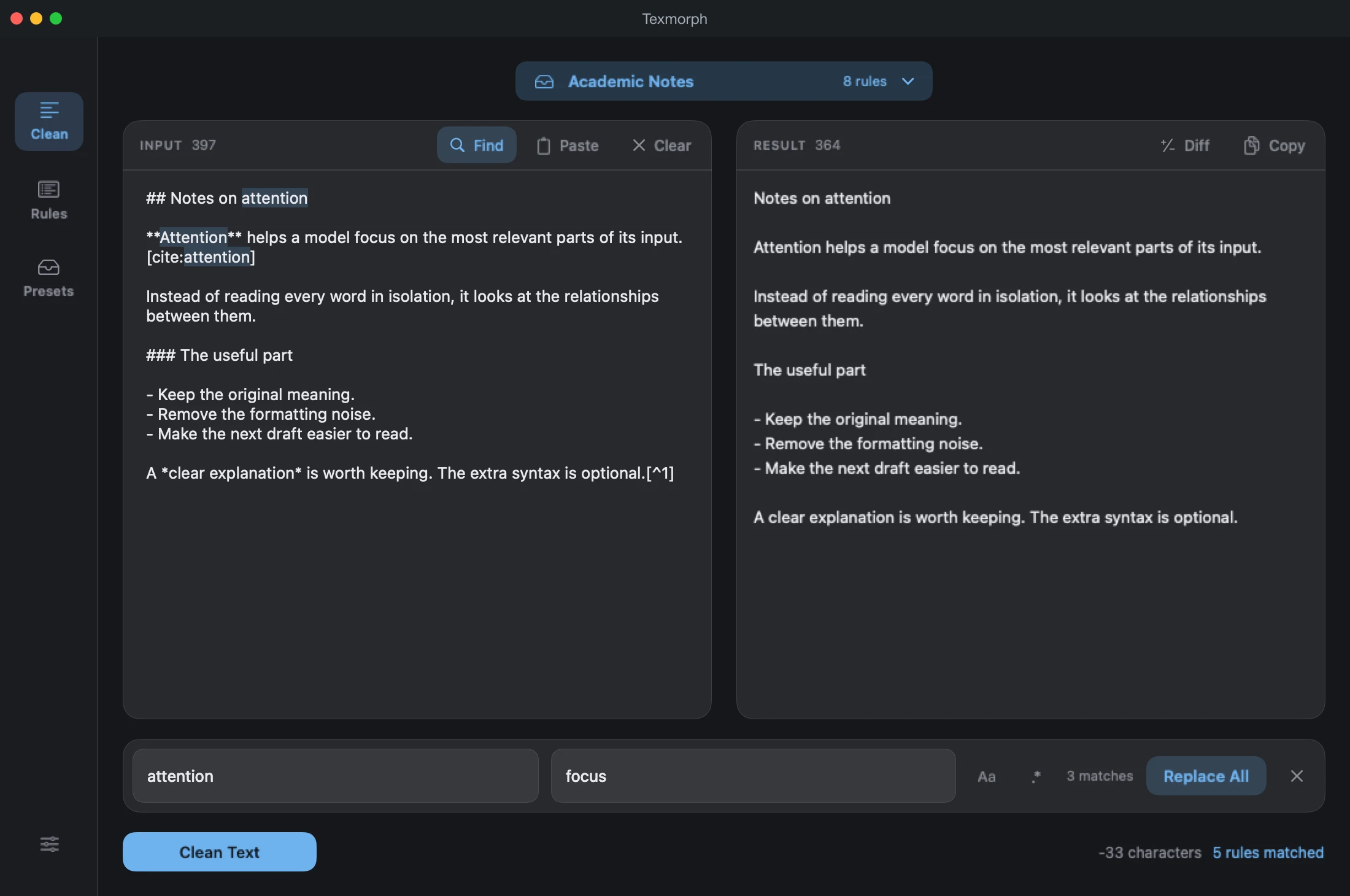
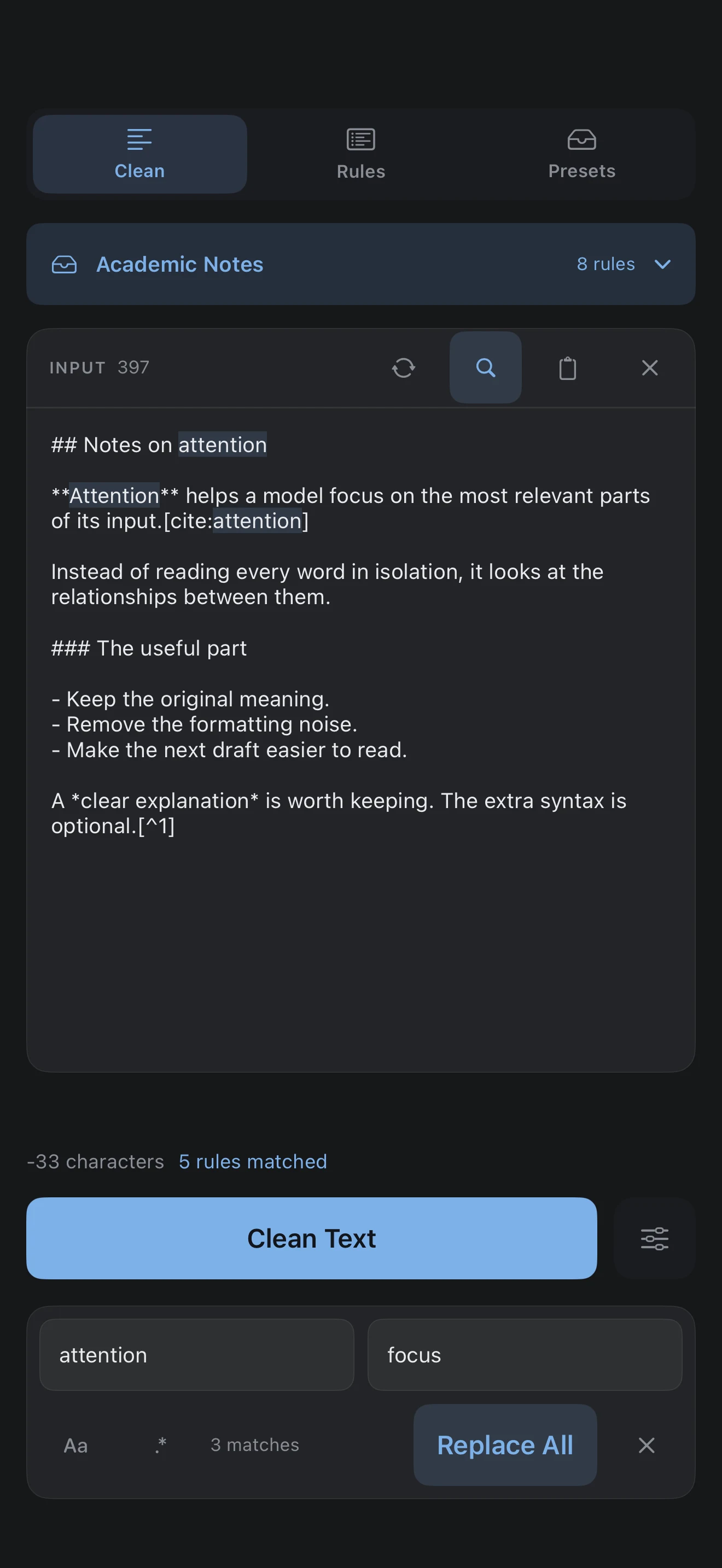
Open Find & Replace from the magnifier on Input. On a Mac you can also press ⌘F or use the Edit menu.
- Type in Find to see the number of matches, and in Replace for the new text.
- Turn on Regular Expression for a pattern, or Case Sensitive to match capitals exactly.
- Choose Replace for the current match or Replace All for every one. Replacing works on Input.
Close the bar with its close button, or Esc on a Mac. Your terms stay there for next time. On iPhone, Return puts the keyboard away without closing the bar.
08 / Keyboard on a Mac
| ⌘Return | Clean Text |
| ⌘F | Find & Replace |
| Esc | Close Find & Replace |
| ⌘1 … ⌘9 | Apply one of your first nine presets, in the order you made them |
| ⌘, | Settings |
09 / Texmorph Pro
Texmorph is free to download, with a 14-day trial of everything that starts the first time you open it. After that, keep cleaning with Texmorph Pro: monthly, yearly or a one-time lifetime purchase. The App Store shows the price where you live.
- See the plans from Texmorph Pro in Settings, or from View Plans, which takes the place of the main button when the trial has ended.
- Already bought it on another device? Choose Restore Purchases.
- Without Pro, your rules, presets and choices are all kept; cleaning and changing them wait until Pro is active again.
10 / Help & privacy
Nothing changed
Check that the rules you need are switched on in Rules, or apply a preset. If the status line says no rules changed the text, the formatting you expected may not match any rule; a custom rule can cover it.
A custom rule will not save
It needs a name and a valid pattern, and the replacement must be shorter than 4,096 characters.
Your text
Cleaning, Diff and Find & Replace run on your device. Texmorph does not send your text anywhere. Read the privacy policy.
Contact
In Settings, Report a Bug gives you the address, or email kircerta@gmail.com with your device, its system version and what happened.