 Lyncemit
User Manual
Adding a date
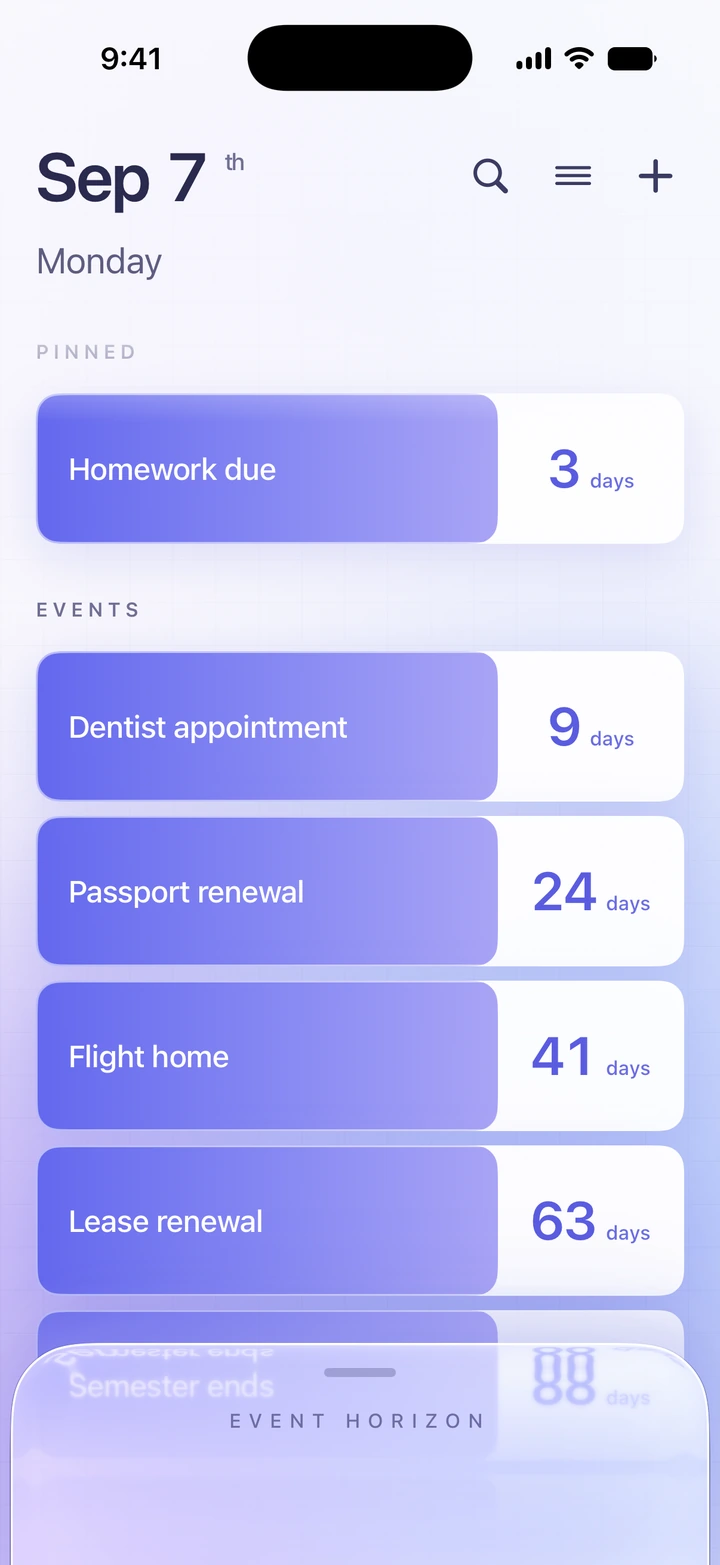
Tap +, type a title, and choose a day, month and year. The wheel does not offer dates that have already passed. Lyncemit counts whole days, so the number changes at midnight and never at any other time.
Day counts
Each countdown stores a calendar date rather than a moment in time. Travelling between time zones does not shift the date you entered or the number of days to it.
Pin
Touch and hold a countdown, then choose Pin. Pinned countdowns are collected above the rest of the list.
Event Horizon
Swipe the glass panel up from the bottom of the list. Every countdown takes one equal step up the track, so the timeline shows the order of what is ahead rather than the distance to it. Pull the panel back down to return.
Timeline spacing
Pinch the Event Horizon timeline to move between compact, default and spacious spacing. Event Horizon only shows countdowns; it does not open or change them.
Remarks and information
Open a countdown and tap Edit to add remarks and your own labelled information fields. Share sends the countdown as text.
Archive
Swipe a countdown left to archive it. Archived countdowns show how many days ago they were. Swipe one there to restore or delete it; deleting is permanent.
Search and sort
Search matches titles across both active and archived countdowns. The list menu sorts by soonest, newest or name.
Widgets
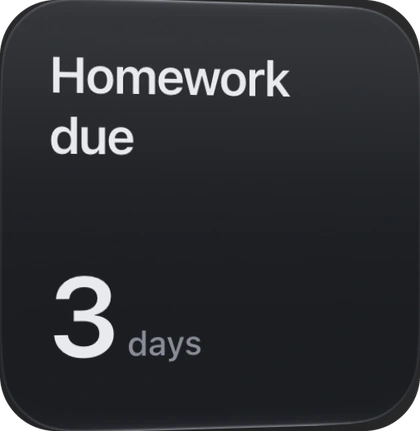
Add a Lyncemit widget to the Home Screen or the Lock Screen, then choose which countdown it follows: your pinned one, the most recently created one, or a specific date.
iCloud
Synchronization is automatic when you are signed in to iCloud; there is no switch to turn on. Settings reports whether it is active, syncing, or reporting a problem.
Appearance and export
Settings switches between System, Light and Dark, turns off the confirmation before deleting, and exports every countdown as a JSON file.
For privacy information, see the Lyncemit Privacy Policy.